How to use TrueLang, step by step
Configuration, translation, manual fixes. Everything you need to run your site in several languages.
Configuration
Before translating anything, you tell TrueLang which is your source language and which target languages you want.
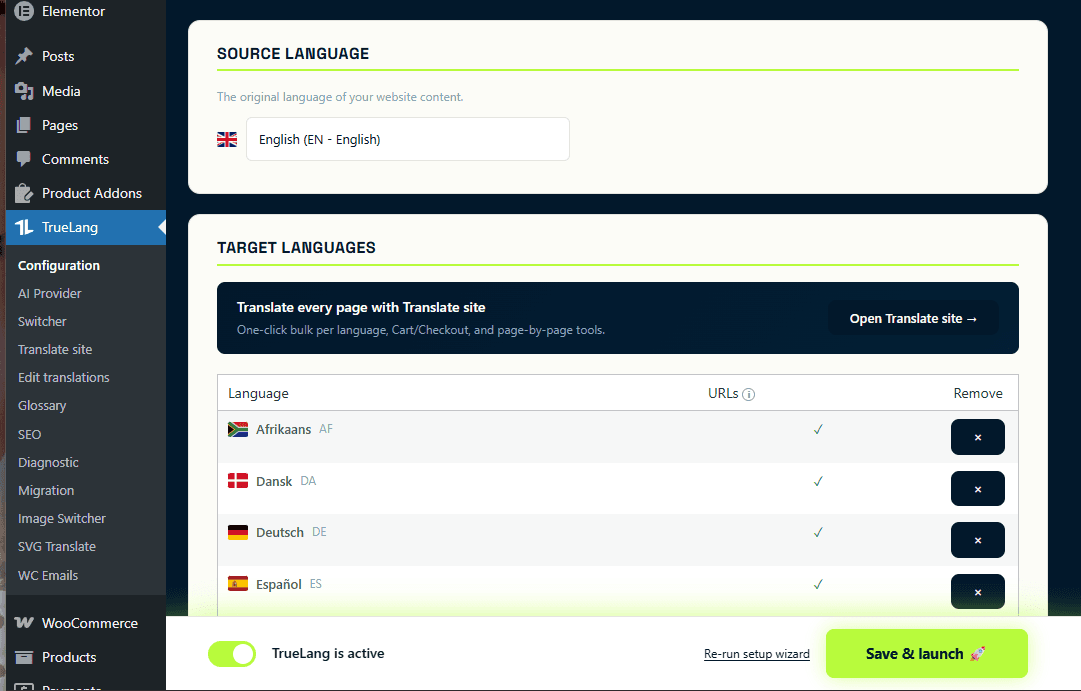
Pick source and target languages
In the Configuration menu, select your original language and the languages you want to translate into. Add as many as you want, all languages are included in every plan.
Translate your site
The Translation tab is where it all happens. One language, one page at a time, live.
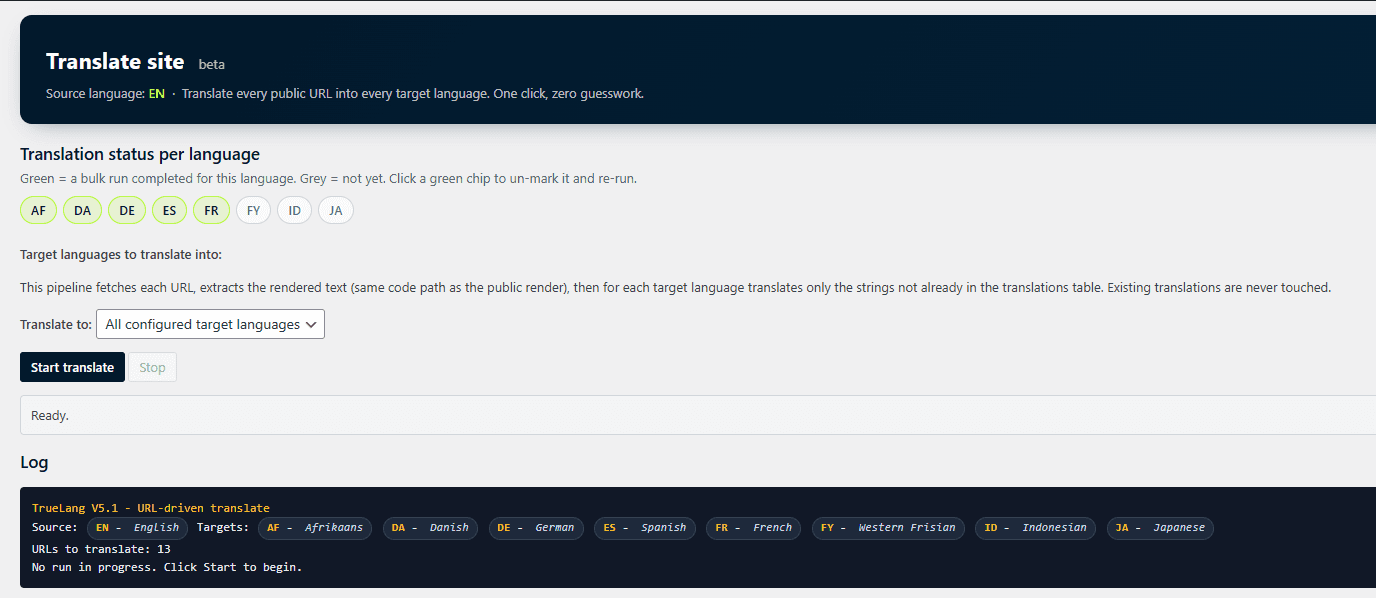
The translation interface
This is where you translate your pages, one by one.
Pick a target language
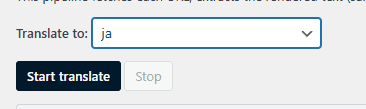
Select the language you want to translate into. One language at a time.
Start the translation
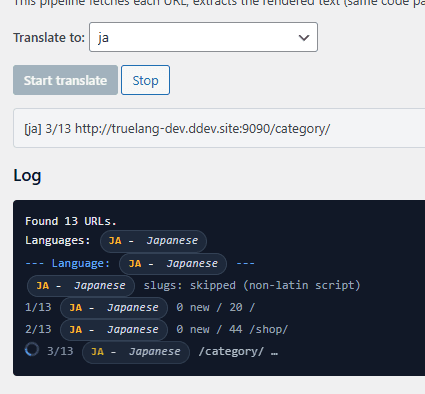
Click Start. TrueLang walks through your URLs one by one and translates each page live in the log.
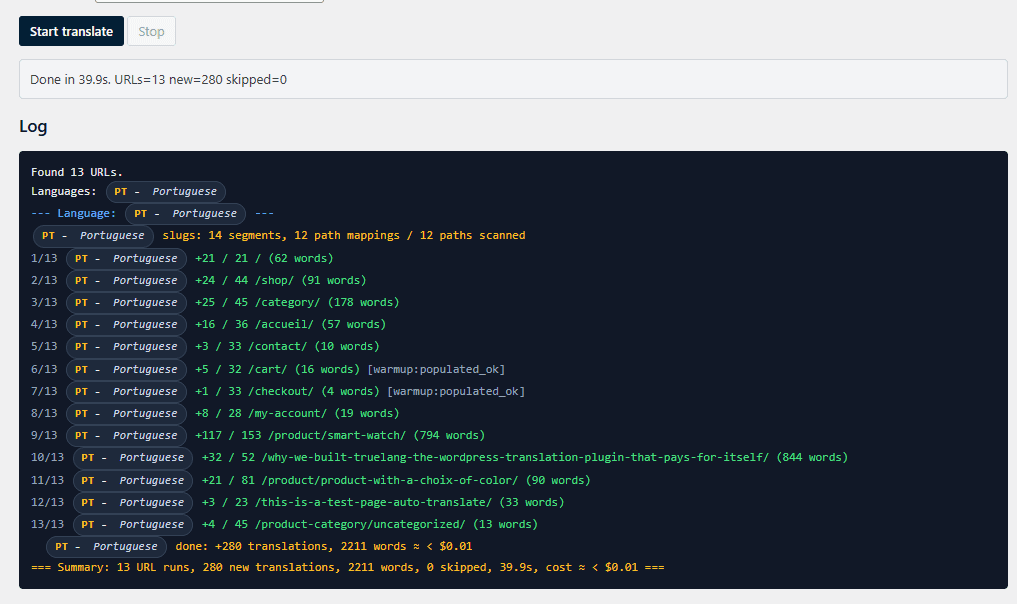
Translation done
Once every URL has been processed, you see the recap: pages, words translated, cost. You can stop and resume at any time. In this Portuguese example, the first URL (homepage /) shows +21/21: the whole page got translated, including shared elements like the menu and footer. From page 2 onward, counters drop to +24/44: TrueLang only sends new segments to the AI. Menus, footers, repeated UI strings are already in your database from page 1, so you are not billed for them again.
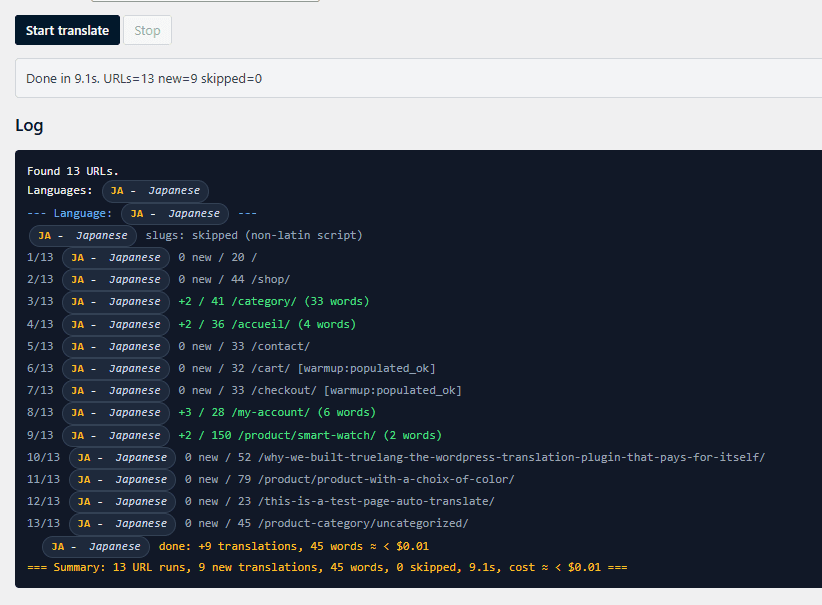
Run it again? Nothing gets re-translated
If you run a translation on a site that's already translated, TrueLang only re-translates new or modified segments. Your credits are preserved. In the log you will see URLs reporting 0 new: it means TrueLang scanned the page, found everything already in your database, and sent nothing to the AI. Free pass, zero cost.
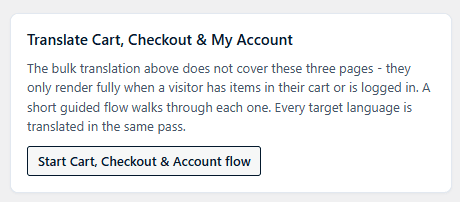
Catch Cart, Checkout and My Account
These pages only render once a product is in the cart, so they slip past the regular translation pass. Two buttons at the bottom of the page handle them.
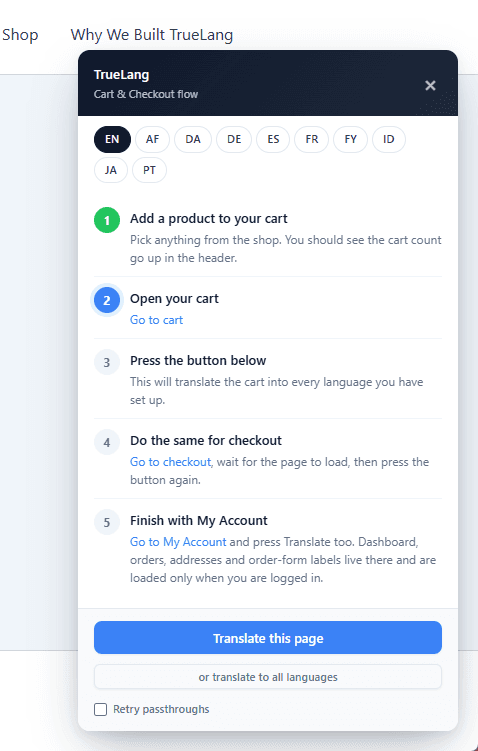
The guided flow for the cart
This one needs you. TrueLang asks you to pick any product and add it to the cart. Once that's done, open your cart page (use the link provided in the guide, or just navigate there like any visitor would). Having a product in the cart is what makes all the dynamic strings render - only then can TrueLang catch them.
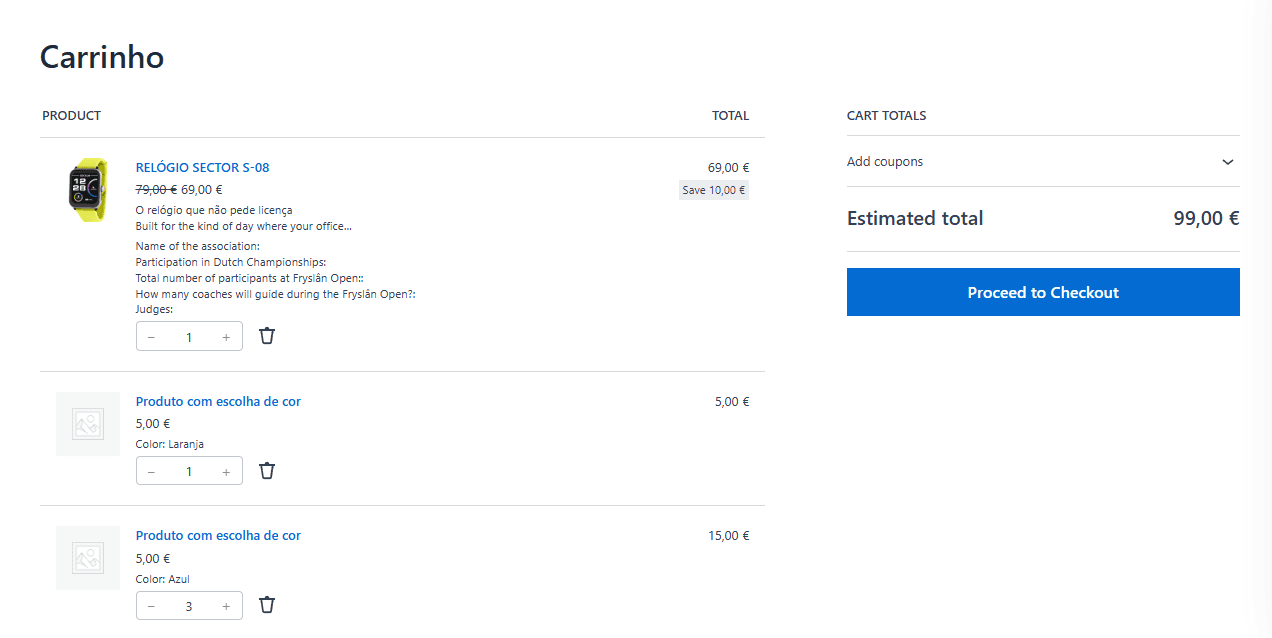
Why isn't the page 100% translated on the first pass?
Some cart elements are dynamic (totals, stock messages, notifications). They only appear in response to an action. The guided flow triggers those actions so TrueLang catches every string. You can see this page is partially translated in Portuguese: it's missing the cart totals, the Proceed to Checkout button and a few more strings.
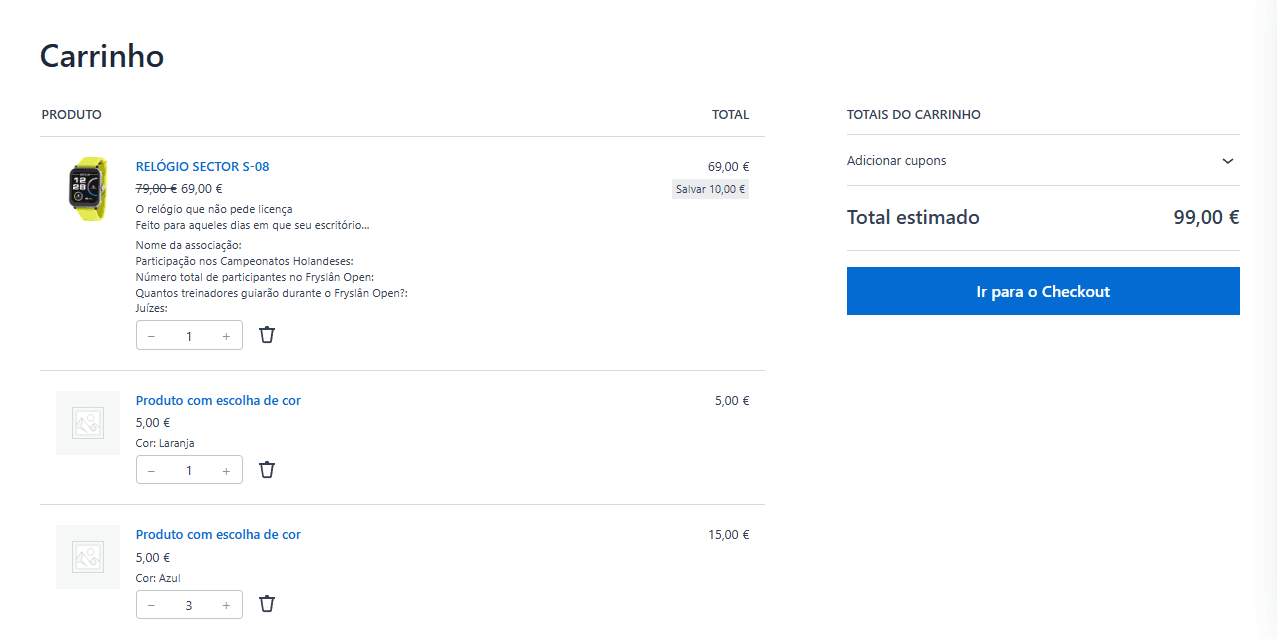
Cart fully translated
After hitting the Translate this page button from the guide, the cart is now fully covered. Portuguese example here: every label, every button, every notification has been picked up.
Same flow for Checkout
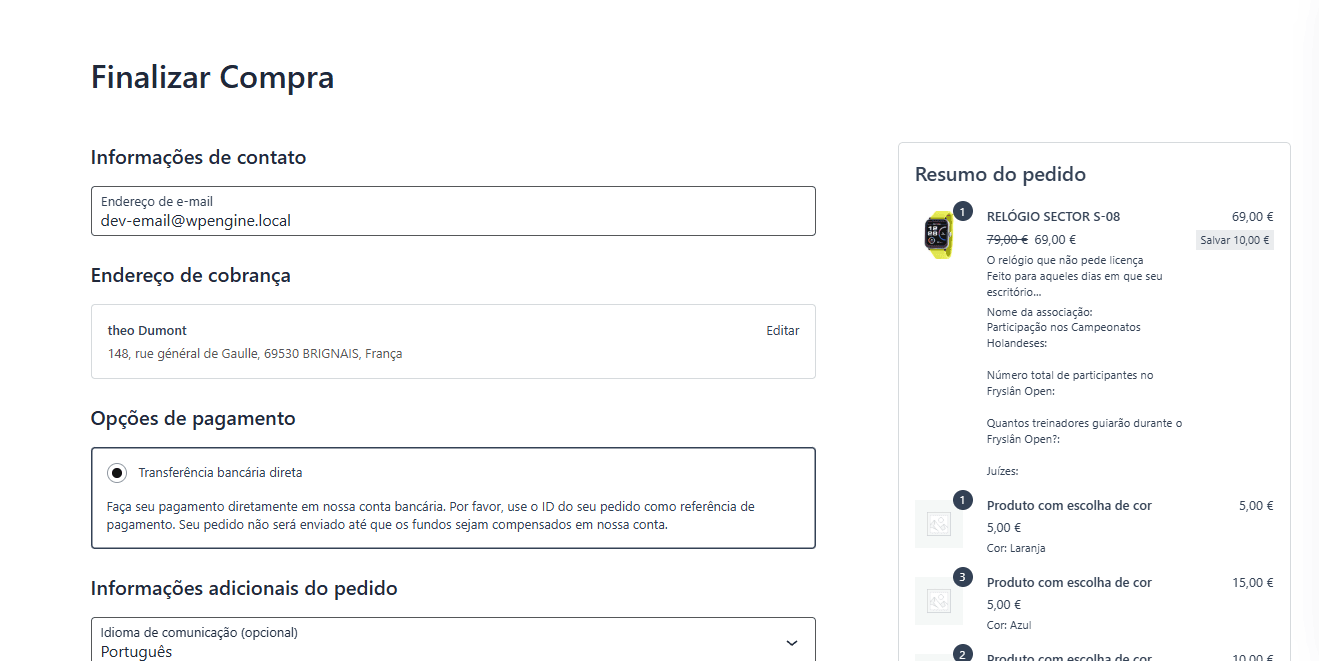
Same story for the Checkout page. Form fields, buttons, error messages, the whole funnel.
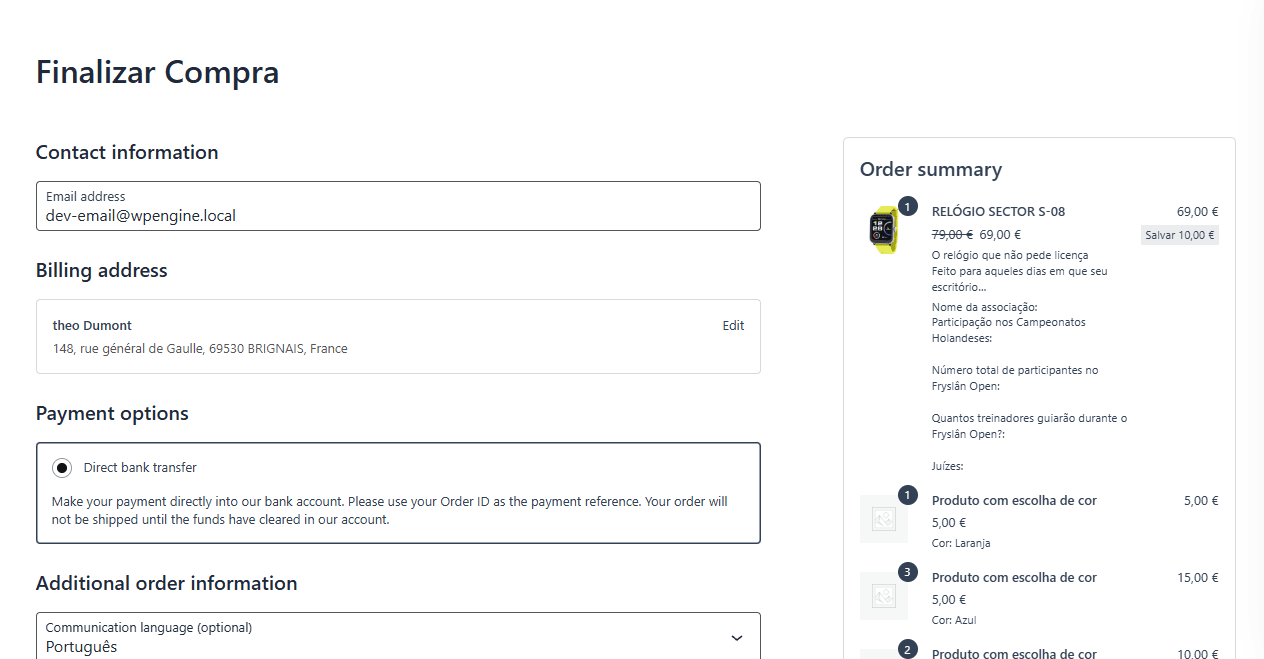
Checkout fully translated
The purchase funnel is covered end to end, from product page to payment.
The general rule for any dynamic content
So anytime you find a missing translation on a dynamic element of your site, this is the way: go to the TrueLang admin, use the Translate this page guide, go to your page, wait until it is fully loaded, open anything that should be translated (popups, panels, dropdowns), then press Translate this page.
The Front Editor
Need to fine-tune a specific translation? No WordPress admin, no code. Edit straight from the front of your site.
Open the editor from the front
Click the TrueLang button on the front of your site. A green frame appears around each translated segment.
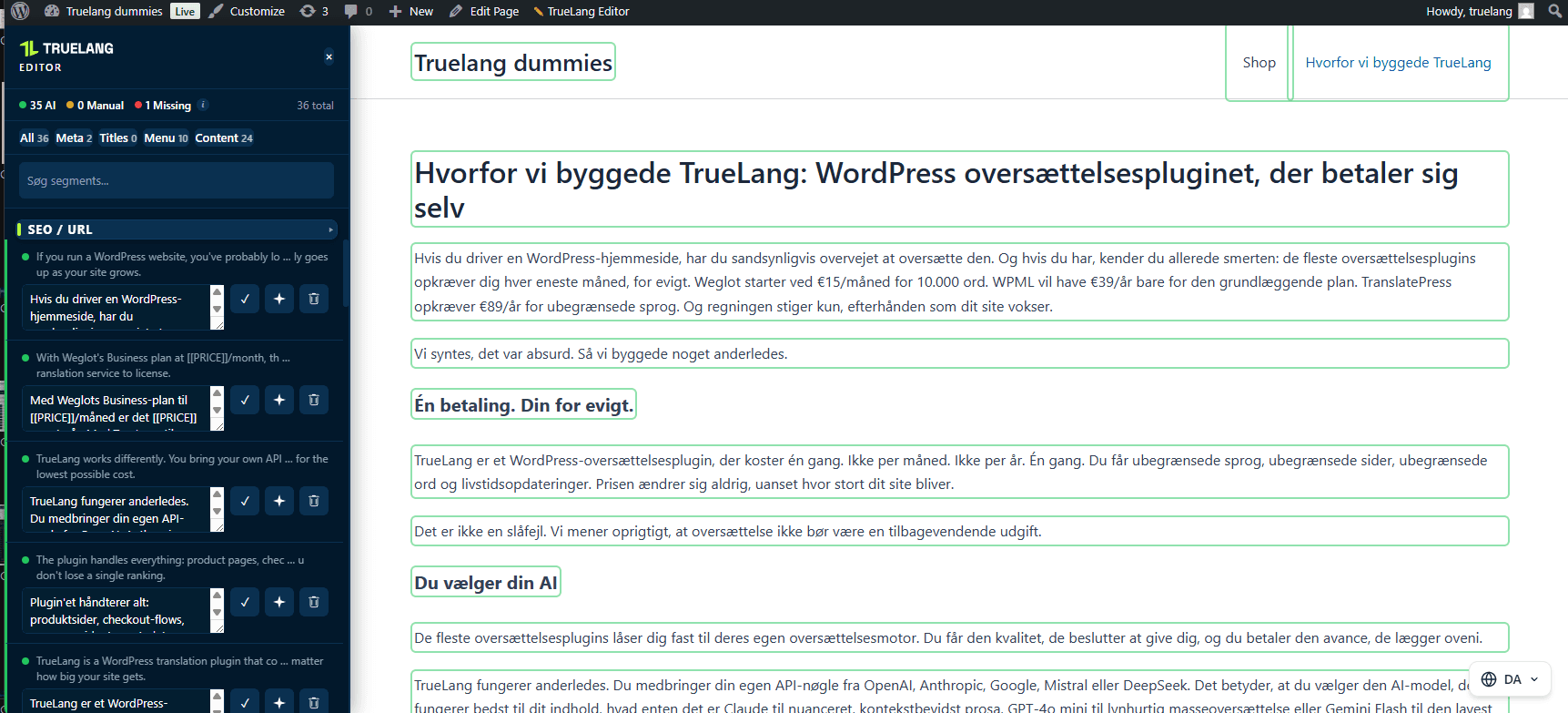
Select a segment
Click the segment you want to change. It highlights in purple on the page, and its details (source text, current translation, edit buttons) show up in the editor column on the side.

Edit and save
Type the fix manually, or ask the AI to re-translate. Click Save, it's stored.
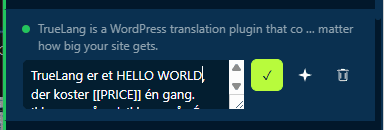
Live change on your site
The new text appears immediately for your visitors. No rebuild, no cache to purge.

When your server blocks itself
Some security plugins (Wordfence, iThemes) and some managed hosts block WordPress from fetching its own URLs. TrueLang handles that case automatically.
The loopback error
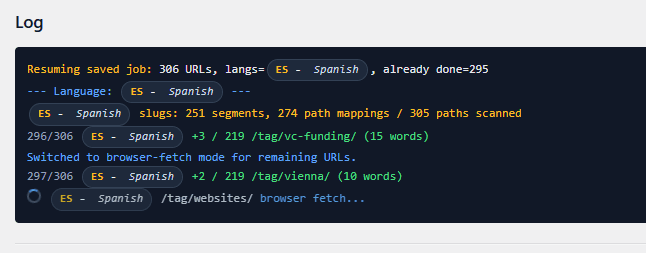
If your server blocks itself, TrueLang shows you a clear message instead of a cryptic failure. One click and you are back on track.
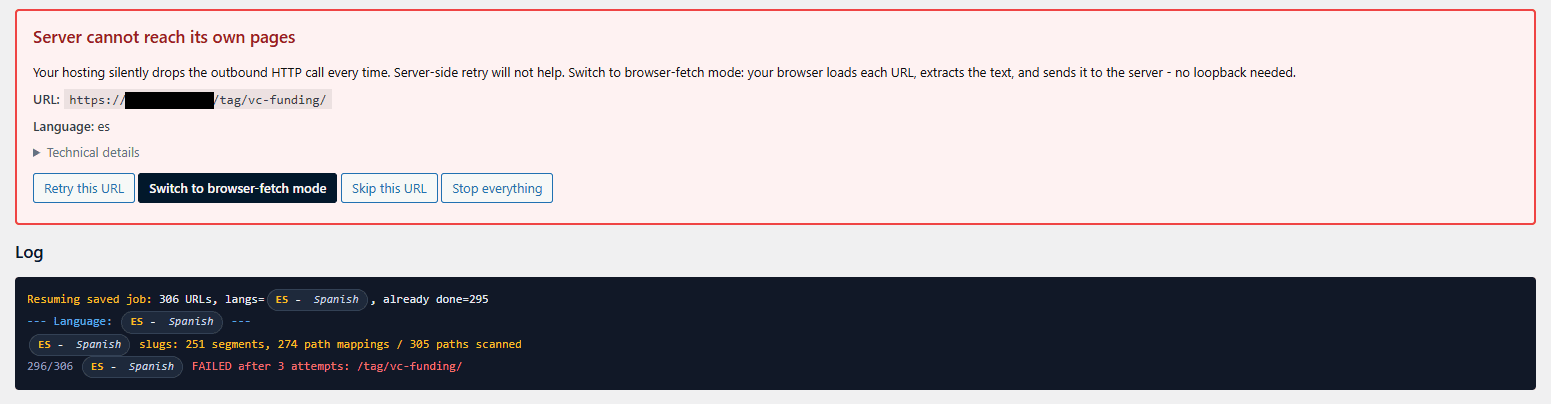
Switch to browser-fetch
TrueLang switches to fetching pages through your browser. Same log, same result, just a different fetch path. No config to change, no support ticket to open. One caveat: browser-fetch is a bit slower than the server-side path since every page has to round-trip through your browser, but it still gets the job done.